





How to create drone show animations
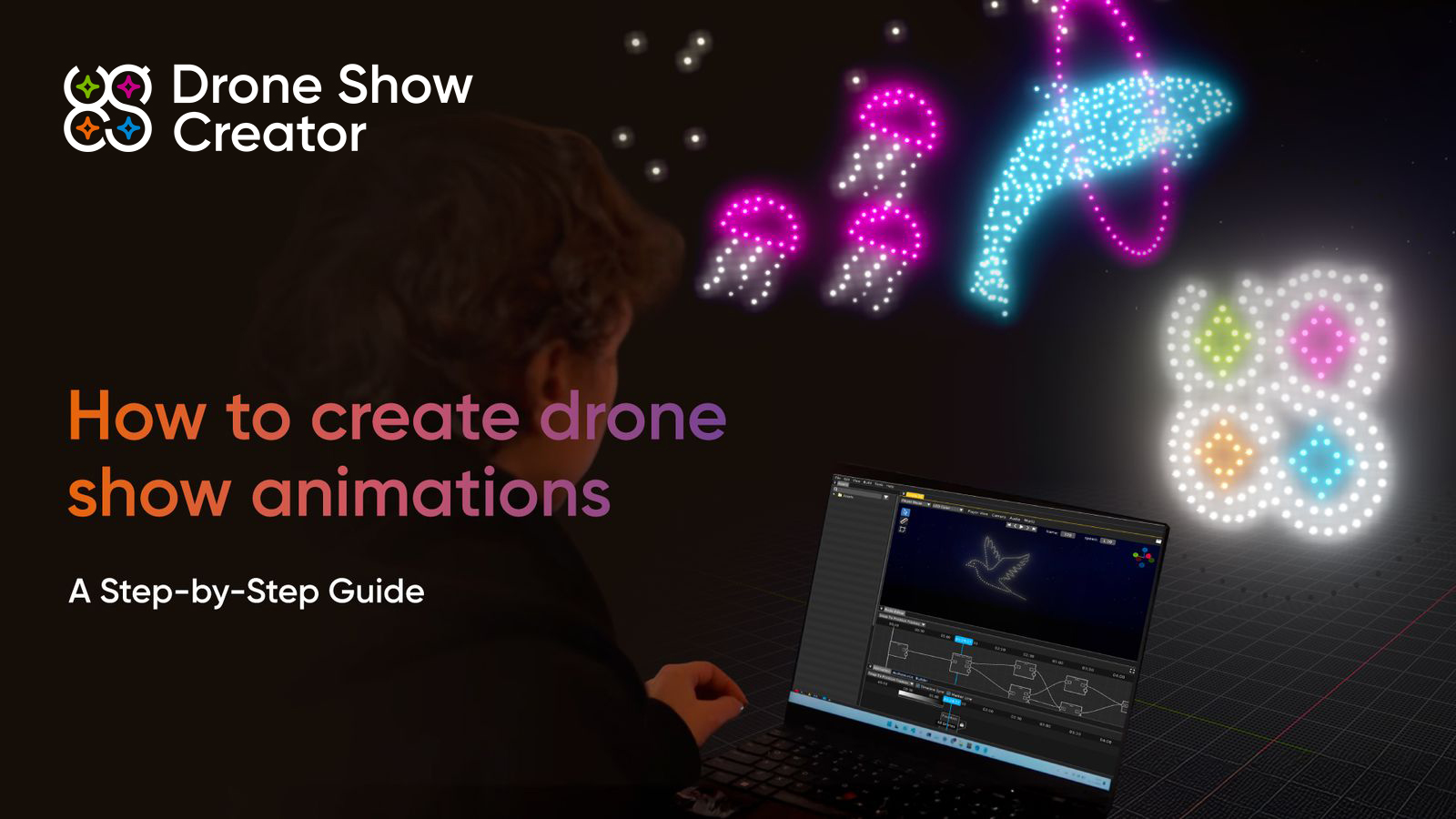
Do you know that behind every drone show, there is not only a team of pilots and engineers, but also a strong creative side? Many successful drone show providers actually started as small creative studios and only later grew into full-scale operators running amazing shows. If you have ever watched a huge animated drone show – those viral drone animations with 6000 drones from K-Drone World Festival, or maybe even in an amusement park like the PortAventura World drone show – you have already seen how animated drones are becoming a new kind of fireworks. Behind every beautiful drone show animation, there is a mix of art, software, and strict safety rules. Drone Show Software powers many of the most successful commercial drone light shows worldwide with Drone Show Software and Drone Show Creator.
In this article, you will learn how to create drone light show animations step by step. We will walk through the basics, the software setup, creative workflow, and final checks before you fly. The goal is simple: to help you go from an idea in your head to a safe and stunning animated drone show in the sky.
What you will learn
- What a drone show animation is and how it works
- What hardware and software you need
- How to plan your show concept and storyboard
- How to create animations in Drone Show Creator
- How to choose between a pure Drone Show Creator workflow and a mixed workflow also involving Blender
- How to optimize, simulate and validate your drone show animation before export
- How to get started even if you are a beginner and plan to create a drone light show with a small fleet
The examples use Drone Show Software tools. The same principles can be applied to any professional animated drone show.
What is a drone show animation?
A drone show animation is a moving picture in the sky that is created by many drones acting as pixels of light. Each drone carries a bright LED. The software controls the exact position, color, and timing of every drone. All of this together becomes a smooth, animated image.
Think about a drone show animation as two layers:
- Artistic idea - the message, shapes, symbols, and story you want to show. For example, a logo reveal, a waving flag or a short story about a character.
- Digital animation - a time-based set of points specifying each drone’s 3D position and LED color at each timestamp. For export, each drone is generated as a separate file containing movement and color commands. These files are imported into Drone Show Software, where they are validated, converted into flight missions, and executed.
In an animated drone show, you usually work with tens, hundreds, or even thousands of drones. Each drone has a GPS receiver, two comlinks (Wi-Fi and radio), and an LED payload. The ground control software sends synchronized commands to every drone.
Key points to note about how drone swarms create synchronized light displays:
- Time is split into frames on a timeline: usually, 4 frames per second are used for movement
- At each frame, the software knows the target position and LED color of every drone
- The flight management unit on each drone follows its path and updates the LED
- All drones follow their paths in sync, so the audience sees one smooth animation
This is why good planning and clean animation curves matter. Sharp jumps or chaotic paths are not only ugly, they can also be unsafe.
Next, it is essential to understand the various types of animated drone shows, which appear in many formats. Popular options include:
- Brand promotions and product launches: logos, product silhouettes, and animated stories above a city, stadium, or theme park.
- Festivals and public celebrations: national holidays, New Year events, city anniversaries. Many events that used to use only fireworks now also figure drone shows.
- Sport and entertainment events: halftime shows, movie premieres, music festivals.
- Art projects: experimental drone choreography and drone show GIF-style loops created specifically for online content.
Examples of animated drone shows
1. Spain's First Nightly Theme Park Drone Show - PortAventura’s 30th Anniversary
2. Disney’s Mufasa Premiere - Umiles, Madrid
3. Liverpool’s Eurovision Song Contest 2023 Opening Ceremony
4. 5,000-drone Guinness World Record - Sky Elements, USA
5. Warsaw Uprising 80th Anniversary, Warsaw
When it comes to real-world applications, animated drone shows are commonly used as:
- A green alternative or add-on to fireworks
- A way to turn the sky into a storytelling screen
- A premium feature for theme parks and resorts
- A new tool for artists and creative studios
The industry is growing fast, and more operators enter the market every year. Software tools such as Drone Show Software help teams scale from a few dozen to several thousand drones.
Key components of animated drone show creation
To create a drone show animation, you need compatible drones, Drone Show Creator software, Drone Show Software, some extra ground hardware, and to follow safety protocols.
1. Hardware
Professional drone shows depend on hardware that is not only compatible, but also predictable and consistent across the entire fleet. Unlike single-drone flights, swarm operations amplify even small inconsistencies, so reliability and uniform performance matter more than raw specifications. Hardware needed to create drone show animations include:
- Drones that support swarm control
- LED light payloads with RGB or RGBW control
- Ground control equipment, antennas, and safety tools
2. Software
Software is the layer that turns creative ideas into synchronized aerial motion. It defines where every drone flies, when it moves, what color it shows, and how it reacts if something changes.
At a high level, drone show software performs three roles:
- Creative design: building formations, animations, and transitions
- Technical validation: checking speed, distance, and safety limits
- Execution control: sending commands to drones during the live show
In professional productions, these stages are handled by dedicated tools rather than one general program. This separation improves reliability, because design tasks and flight-critical tasks have very different requirements.
Later in this article, we will examine the software environment in detail, including how animation design tools and flight control platforms interact, how data moves between them, and how they support safe real-world execution. Software we recommend for creating drone show animations are:
- Drone Show Creator for animation design and creative work.
- Drone Show Software for mission planning, safety checks, simulation, and real flight control.
3. Choreography and timing
Drone shows ought to be thought of not as mere “flying pixels,” but as a complete performance.
- Storyboard and show script – you plan the story scene by scene: what appears first, what follows, and how the show ends.
- Music and sound design – the rhythm, beats, and sound effects define the energy of the show and help you decide where key moments go.
- Timing of formations and transitions – each formation needs a clear start, culmination, and exit. You match these moments to the music so the sky, sound, and audience reaction stay in sync.
4. Safety protocols
Safety rules shape every creative decision.
- Doubly-secured geofences (soft and hard) in software – virtual boundaries that keep drones inside the safe area and away from people or obstacles.
- Preflight checks and emergency procedures – systematic checks of hardware, software, GNSS and batteries plus clear rules for aborting or landing if something goes wrong.
- Respect for regulations, audience distance and airspace rules – minimum distances to spectators, compliance with aviation authority requirements and coordination with local airspace controllers so the show is legal and safe.
Software setup for creating drone show animations
To craft and run drone show animations, you work with two main tools in the Drone Show Software ecosystem:
- Drone Show Creator for animation design
- Drone Show Software for show preparation and execution
They are designed to work together. In this section, we introduce these tools:
1. Drone Show Creator

Drone Show Creator is a dedicated animation design tool. It is where creative designers and technical directors build formations, transitions and full stories in 3D.
System requirements and licenses
Drone Show Creator runs on a modern computer with a capable GPU. It is available as a separate license with options for annual plans. The same creative vision can be exported for shows of different sizes, from small tests to large productions.
Key features of Drone Show Creator include:
- Intuitive interface for beginners and experts alike
- Real-time position control and visualization for each drone
- Integration of 3D models, images, texts, QR codes, and more
- Asset library management for reusable formations and elements
- Smooth animation export to Drone Show Software
- A safety system that highlights areas where drone speed is too high or the distance is too small
- Map view for easily creating shows at specific locations
- A dance area to help you design animations within safe borders
Drone Show Creator is aimed at creative designers, animators, and studios. You can use it even if you do not have a deep background in animation: it is remarkably easy to learn the basics.
2. Drone Show Software

Drone Show Software is the platform that prepares, simulates and runs your live show. It connects your creative work with real drones and real airspace.
System requirements and licenses
Drone Show Software runs on modern Windows computers. It supports licenses for various fleet sizes, ranging from 20 to 100, 1000, or even 6000 drones, with more available upon request. There is also Drone Show Software Lite, a beginner’s license that is free for shows with up to 20 drones: perfect for learning and tests!
Key features of Drone Show Software include:
- Full solution for show preparation and execution
- 2D and 3D views of the flight area and formations
- Flight path management and LED payload control
- Safety tools such as double geofence (soft and hard), GNSS correction redundancy, and emergency Red Button
- Time code integration for syncing with music, lights, pyrotechnics, and other elements of a multimedia show. A built-in simulator to test your mission in a virtual environment, imitating the real show venue
Drone Show Software is designed for professional operators who produce live shows for clients. You can start with a small fleet and grow gradually without needing to change tools.
Planning your drone show animation
Before you open any software, however, you need a clear plan. Good planning saves hours of work later and reduces risk during the show. Follow the steps below for a successful animated drone show:
- Define your show concept
- Create a storyboard
- Review technical considerations
- Gather assets
Let’s go through these steps next. And in the next section, we’ll show you exactly how to create animations in Drone Show Creator after gathering your assets (step 5).
1. Defining your show concept
Start with simple questions:
- Why do we create this show?
- Who is the audience?
- What should people feel and remember?
This helps define your story and visual language. For example:
- Product launch with clear logo moments
- City celebration with local symbols and phrases
- Artistic animated drone show with conceptual abstract shapes
Other things to define at this stage:
- Duration and pacing - short shows for events are often 7 to 12 minutes. Online-only loops for social media can be under 60 seconds.
- Venue analysis and constraints - study the site plan. Note buildings, trees, water, roads, and audience positions.
- Drone fleet size - the number of drones defines your “resolution.” A small fleet works well for simple symbols. Complex 3D scenes need more drones.
2. Creating a storyboard
A storyboard is like a comic strip for your show. You draw or write each scene and mark timings.
Include:
- Start, build up, climax and closing formation
- Duration of each scene
- Planned transitions between formations
- Moments where music changes
Align your storyboard with music. For many projects, music drives the whole structure. You can write down the time of key beats and match transitions to them.
Think not only about shapes, but also color stories. For example:
- Warm golden palette for a festival
- Brand colors for a corporate show
- Cool night colors for a calm mood
3. Technical considerations
Even the most creative idea must fit into safe and legal limits.
Check:
- Flight area dimensions. You must know how big your safe flight box is. Drone Show Software’s geofence tools will help you keep drones inside this zone.
- Safety zones and audience distance. Respect regulations and manufacturer guidance. Keep drones at a safe distance from people and roads.
- Weather and environment. High winds, rain, and fog can cancel a show. Think about plan B and write it into your contract.
- Regulations. Each country has its own rules. Check local aviation authority requirements for night flights, swarm operations, and show approvals.
4. Gathering assets
For many projects, you need external assets:
- 3D models - logos, characters, buildings. Use formats supported by Drone Show Creator, such as standard mesh formats like FBX or OBJ.
- Images - 2D logos or icons that you will convert to drone formations.
- Audio files - final or draft music track. Include sound design elements if needed.
- Reference materials - brand guidelines, color codes, client sketches, examples of other shows.
Have all these ready in organized folders before you start animating.
Creating animations in Drone Show Creator
This is the heart of the process. Below is a practical walkthrough that follows how an experienced animator would build a show in Drone Show Creator.
If you prefer to watch first, search for Drone Show Creator courses in Drone Show Software Academy and follow the basic video tutorial in parallel.
Setting up the Drone Show
- Open the program
- Go to File → New → Empty to create a new project
- Arrange the windows in a way that’s comfortable for you, or move them to another screen if needed
- In the Assets window, add all the files you need — images, videos, text, 3D objects, and music
- Set up your environment in Settings
specify the number of drones, minimum distance, maximum speed, flight area coordinates, and add music - Build your show scenario in the Node Editor
add nodes, adjust their duration, type, position, and parameters such as radius or drone spacing - Connect the nodes together
- Switch to Player Mode
in the Animation window, add light effects such as gradient, blinking, garland, and others, as well as transformations like scale, rotation, and position - You can use an unlimited number of modifiers
light effects can also be added to the links between nodes - When your show is ready, build the project and check for errors
- If everything looks good, record the show
- Export the project and send it to Drone Show Software for playback with real drones
Choosing a drone show animation workflow
Before starting production of your drone show animation, it is important to choose a workflow that matches your team’s skills, timeline, and project complexity. In drone show creation, workflow decisions affect not only efficiency, but also safety validation, revision speed, and collaboration between creative and technical roles.
You can create your drone show animation in two main ways:
- Directly in Drone Show Creator
- In Blender plus Drone Show Creator
Method 1: Direct creation in Drone Show Creator
For most teams, especially when you're starting out, a direct Drone Show Creator workflow is the best choice because it’s a purpose-built tool for animated drone shows. Below are some benefits of using the Drone Show Creator workflow.
- All in one environment from first sketch to final export
- Tools are built especially for drone shows
- Real-time and accurate preview of drone limits and spacing
- Easy handover from designer to show operator
When to use:
- Commercial shows with tight deadlines
- Standard use cases such as logos, symbols, text, characters, and simple 3D scenes
- Teams without dedicated 3D departments
Method 2: Blender plus Drone Show Creator integration
Some studios already work in Blender or want highly detailed 3D scenes. In this case, you can create parts of the animation in Blender and then integrate with Drone Show Creator.
When this makes sense
- You already have complex 3D assets and animators who use Blender every day
- You want to reuse content from other 3D pipelines
- You need very custom shaders or simulations, which you then adapt to drone positions.
Workflow for creating drone show animations in Blender
- Build and animate your scene in Blender.
- Export key data such as camera, meshes, or paths.
- Import or recreate these elements in Drone Show Creator.
- Map drones to meshes and paths and adjust for physical limits.
- Finalize timing and safety inside Drone Show Creator.
Extra complexity
- Some visual effects in Blender do not work in the real world.
- You need extra time for cleanup and validation.
For many teams, a hybrid approach works. Use Blender for concept art and previews. Use Drone Show Creator to build the final drone show animation.
Optimizing and validating your drone show animation
Once your creative work is ready, ensure it is safe, efficient, and ready for export to Drone Show Software.
Performance optimization
Look at your animation through a practical lens:
- Movement reduction. If a drone can stay almost still for a while, let it rest. Long, aggressive moves cost more battery.
- Transition times. Do not rush significant changes. Allow drones sufficient time to move without exceeding speed limits.
- Visual impact vs safety. Sometimes a simple, bold formation works better than a very busy one. Less is often more.
Safety visualization and analysis
Use tools in Drone Show Creator and Drone Show Software to check safety.
- Path view with color based on speed
- Warnings when drones get too close
- Visual markers on the map for geofences
If you see places where many paths cross at the same time, consider changing the choreography.
Running simulations
Before you commit to executing your show with real drones, run simulations.
- 2D mode
- Check the top view to confirm that all drones stay inside the flight area.
- Look for path crossings and dense areas.
- 3D mode
- View the show from the audience's point.
- Watch altitude changes and depth.
- Real-time preview
- Play the show with music if possible.
- Note any moments that feel too fast or confusing.
- Iteration
- Fix problems, then simulate again.
- Repeat until the show feels both beautiful and safe.
Technical validation checklist
Using the Fleet Simulator built into Drone Show Software, go through a simple checklist:
- Maximum altitude within legal and project limits
- Horizontal and vertical speeds within fleet limits
- Total flight time within battery limits plus safety reserve
- Minimum distance between drones is safe at all times
- All formations remain inside the geofence and away from the audience
- There is a clear plan for an emergency stop and a safe landing
Exporting flight paths
- Choose export format
- Use the format recommended for Drone Show Software in your version.
- Each drone will fly according to an individual path file.
- Prepare files for Drone Show Software
- Organize exports in folders by show and date.
- Include audio files and notes.
- Quality control
- Import the animation into Drone Show Software.
- Run another simulation in its Fleet Sim environment.
- Documentation
- Save a short document with show name, drone count, date, version and safety considerations.
- This helps your team and regulators understand the show.
Conclusion
Creating a drone show animation may look complex from the outside. In reality, it becomes manageable when you split it into clear steps.
You start with a simple idea. Then you plan your concept and storyboard. After that you build formations and transitions in Drone Show Creator. Finally, you test, optimize, and export to Drone Show Software for real flights.
This workflow scales from small animated drone shows with 20 drones to large productions featuring several thousand drones in the sky. The Drone Show Software ecosystem supports you at each step, from design to execution.
If you are new and want to create a drone light show, a good first step is to start with the free Drone Show Software Lite License for up to 20 drones. You can learn, experiment and show your first animations to clients or your community. Ready to create your first drone show animation? Start with Drone Show Creator and turn your story into a real sky performance.
FAQs on creating animated drone shows
What software do I need to create drone show animations?
To follow this guide, you need Drone Show Creator for animation design and Drone Show Software for show preparation, simulation, and live control. Together they cover the full pipeline from idea to real flight.
Can beginners create drone shows without coding?
Yes. Drone Show Creator uses a visual interface. You work with timelines, keyframes and 3D views. No coding is required. Many users come from design or event backgrounds, not programming.
Do I need Blender to create drone animations?
No. You can create complete shows directly in Drone Show Creator. Blender is optional and useful mainly if you already have complex 3D assets. How long does it take to create a drone show?
For a small show or a short loop, an experienced designer may need a few days. Bigger shows with custom 3D models, strict brand rules and regulatory approvals can take several weeks from concept to final mission.
What is the difference between Drone Show Software and Drone Show Creator?
Drone Show Creator is for creative work and building animations. Drone Show Software is designed for mission planning, safety checks, simulation, and operating real drones during the show.
How many drones do I need for an animated light show?
It depends on your goals. About 20 to 50 drones are enough for simple shapes and text. A fleet of 100 to 300 drones already gives strong images for most commercial events. Very complex 3D scenes and Guinness World Record–level drone animations in light shows can use thousands of drones.
Is drone show animation and control software expensive?
Drone Show Creator and Drone Show Software are professional tools, but Drone Show Software offers flexible license options. The Lite License for Drone Show Software is free for up to 20 drones, making it easy to get started without incurring significant upfront costs.


Soar above the rest. Subscribe to our regular news updates